Tuesday, 10 July 2012

Multiple Authors in the Author Field


One thing I have noticed that catches people out is entering multiple authors into the author field.

If you create a new reference (References | New Reference on the menu), you can enter the authors into the Author field. It is natural to do this in a continuous fashion:


Unfortunately, this does not render properly in the output, as can be seen from the preview pane:


The solution to this is to split the separate authors onto separate lines in the author field.


This now outputs correctly:

  
The same is also true of the Editor field.

Tuesday, 19 June 2012

Westlaw and Endnote


For a long time it has not been possible, much to the irritation of people engaged in law research, to download from the Westlaw database to Endnote.

Recently, this has changed, and journal articles (although not cases) can now have their references exported to Endnote.

First, you need to run your search on Westlaw:


The results are shown. Click on the check boxes on the left to select the items you want to download.


The download functionality is cunningly hidden in the top right hand corner next to the envelope. Click on the down arrow and select Export to Endnote.


This takes you to the Export page


Click on Submit. A .ris file will be downloaded to your local disk. Open this and it should load into your Endnote library.


Tuesday, 12 June 2012

Hanging Indents


Occasionally, I get asked how to remove the hanging indents from a bibliography.The hanging indents, as I’m sure you know, are the bits where the first line of a reference hangs out beyond the second on the left of the page – this is much harder to describe than to show:

This can be referenced (Burn, 1969), and so can this (Aristotle, 1984).


Some referencing styles want this, and some do not. It is not something you can control from the style.

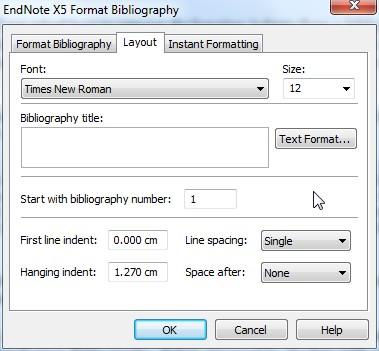
To change this, you will need to middle tab from the familiar (at least from the last few weeks posts) Format Bibliography dialog, accessed by the box with an arrow in it in the Bibliography group of the Endnote tab.


The entry in the bottom left ‘Hanging indent:’ controls the size of the indent. Setting this value to zero will remove the indent entirely.

As you can see from this dialog, there are a number of other things you can control – the font and size of the bibliography, a title for it, the line spacing and so on. It is worth having a bit of a play with these settings to see what you can change, and select some which you like.

Tuesday, 5 June 2012

Instant Formatting

Mostly, when you insert a reference into a Word document from Endnote, the citation is quickly updated to be the fully formatted citation and the reference added to the reference list at the end of a document.


Sometimes, this is not the best or most convenient method of having your references formatted. For example, I mentioned last time the problem with using brackets for notes of the same type as Endnote uses for its in text citation delimiters.

If you have just one example of this, every time you insert a citation, you will get Endnote asking you which reference your bracketed comment refers to.

If this gets annoying (and it almost certainly will), you can turn off Endnote’s instant formatting feature.

To do this, click on the little arrowed box at the bottom right of the Bibliography group on the Endnote tab.


This brings up the format bibliography dialog box.


If you click on the Instant Formatting tab, you can turn the feature on and off.


Click on Turn Off and then OK.

Your citations will now remain unformatted in your document until you instruct the program to format them yourself. To do that, click on the Update Citations and Bibliography in the Bibliography group on the Endnote tab (top picture of this post).


Tuesday, 29 May 2012

Bracket Bother

Sometimes, you just need to put things in brackets: perhaps a note to yourself to add an argument, or finesse a point, or, perhaps simply, an aside to the reader. In the latter case, of course, round brackets (like this) are the norm, so for others you might wish to use a different shape of brackets.


When you do this, you can have some odd, and annoying, things happen when you use Endnote.

Say, for example you had the following text:

This is one example of bracket failure {it is not fatal but annoying}. This can be referenced

You then insert a reference from your library. It is quite possible that you will get a dialog box looking like this:


Endnote is asking you to track down the reference which is in the curly brackets ‘{…}’. Of course, it does not exist, because it is not an Endnote reference.

If you have only a few of these, you can just click through and ignore them. But if you are using Endnote intensively, it can get frustration that, every once in a while, Endnote will prompt you for this.

What is happening is that Endnote is looking for the particular combination of delimiters which tell it where citations are to be found. In this case it is the pair of curly brackets.

You can change the settings of Endnote to use different delimiters. You need to click on the small arrowed box on the Bibliography group on the Endnote tab.


This will bring up the Format bibliography dialog.


In the middle of top tab are the temporary citation delimiters. You can change these (preferably before you start writing!) to avoid using the same bracket type which you use for your notes and comments.

For example, if you want to use curly brackets for your note, change the delimiters to square brackets ‘[…]’. As long as you are consistent in your usage, Endnote should stop asking you to identify references for what are your writing notes.


Tuesday, 22 May 2012

Invalid Class String

Occasionally, you get error messages from Endnote.

Unfortunately they are sometimes less than informative.

A case in point is when you get an error message saying ‘Invalid Class String’.

There are a few possibilities here:

You may be running Word and Endnote at different levels of permissions (e.g. Word as Administrator and Endnote as a user). This seems to confuse matters.

You may be running a different version of Endnote to that installed as the cite while you write tools in Word. The answer here is to reinstall the tools in the correct version.

Fixes, depending on your versions of Word and Endnote, can be found here:


Tuesday, 15 May 2012

Endnote Training Videos on You Tube


Just to draw your attention to the Endnote You Tube channel:


This contains over 50 videos of Endnote training, including quick start lessons, downloading from databases and some more obscure bits like the importance of the .DATA folder.

The only problem I can see with them is that some are a little out of date, like the JSTOR video. JSTOR changed their interface recently; this is the problem with this sort of documentation: it goes out of date quite rapidly.

Still, worth a look, and they are nice, and useful, videos.