I occasionally get accused of being an Endnote evangelist, and being so zealous for the Endnote cause that I ignore its shortcomings and any competitors.
I hope that is not true, but Endnote is the product we have within the university, and it is, in my view, the most powerful and flexible of the products available. That does not mean that it suits everyone, of course, and power and flexibility come at a price, both in financial terms and in complexity.
Therefore, I want to flag up one of the main Endnote competitors today, which has recently undergone a makeover: Zotero 3.0.
Earlier versions of Zotero have, in my view, been hamstrung by the fact that it has to be run from within the Firefox browser. Now, it may just be me, but I’ve found Firefox to be a bit slow and clunky, which has made Zotero harder to use.
Zotero 3.0 comes in a stand alone version, which is good, in my view, and it also integrates with Google Chrome and Safari, which as the former is currently my browser of choice, is a good thing.
You can download Zotero 3.0 standalone from here: http://www.zotero.org/support/3.0#zotero_standalone
It will read your older Zotero files, and you can export and import from Endnote as well, via RIS format libraries.
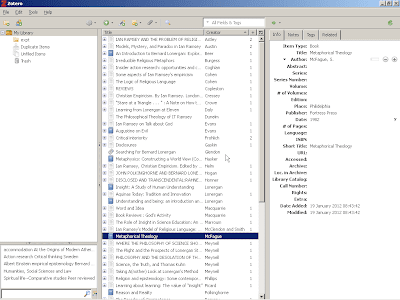
Once installed and launched, Zotero looks like this:
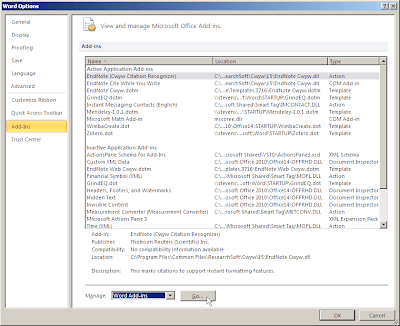
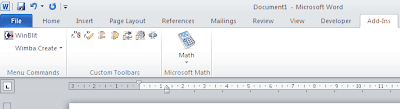
The toolbar in Word 2010 looks like this:
I’ll try to write a few posts over the next few weeks explaining how to use the software. In the meantime, there is a comparison of the products here:
http://chronicle.com/blogs/profhacker/zotero-vs-endnote/33157
Zotero also works in Mendeley, which I know some folk use; in fact, I believe that it is part of the underlying code for Mendeley, but I could be wrong on that.