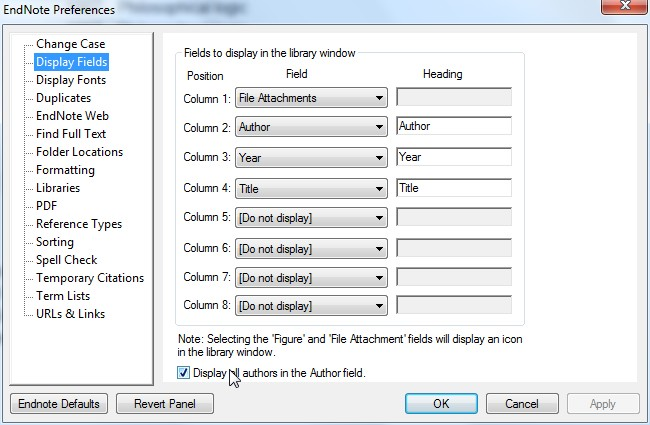
You may have found that later versions of Endnote (X5 in particular) displays by default all the authors of a multi-author reference.
Tuesday, 8 May 2012
Displaying Multiple Authors
You may have found that later versions of Endnote (X5 in particular) displays by default all the authors of a multi-author reference.
Tuesday, 1 May 2012
Importing PDFs
Tuesday, 24 April 2012
Zotero 3.0
I hope that is not true, but Endnote is the product we have within the university, and it is, in my view, the most powerful and flexible of the products available. That does not mean that it suits everyone, of course, and power and flexibility come at a price, both in financial terms and in complexity.
Therefore, I want to flag up one of the main Endnote competitors today, which has recently undergone a makeover: Zotero 3.0.
Earlier versions of Zotero have, in my view, been hamstrung by the fact that it has to be run from within the Firefox browser. Now, it may just be me, but I’ve found Firefox to be a bit slow and clunky, which has made Zotero harder to use.
Zotero 3.0 comes in a stand alone version, which is good, in my view, and it also integrates with Google Chrome and Safari, which as the former is currently my browser of choice, is a good thing.
You can download Zotero 3.0 standalone from here: http://www.zotero.org/support/3.0#zotero_standalone
It will read your older Zotero files, and you can export and import from Endnote as well, via RIS format libraries.
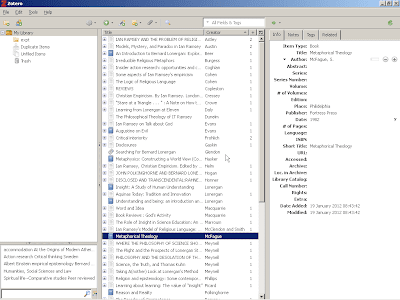
Once installed and launched, Zotero looks like this:

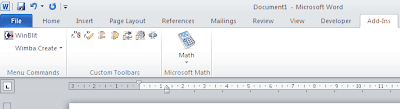
The toolbar in Word 2010 looks like this:
I’ll try to write a few posts over the next few weeks explaining how to use the software. In the meantime, there is a comparison of the products here:
http://chronicle.com/blogs/profhacker/zotero-vs-endnote/33157
Zotero also works in Mendeley, which I know some folk use; in fact, I believe that it is part of the underlying code for Mendeley, but I could be wrong on that.
Tuesday, 17 April 2012
Activating Templates
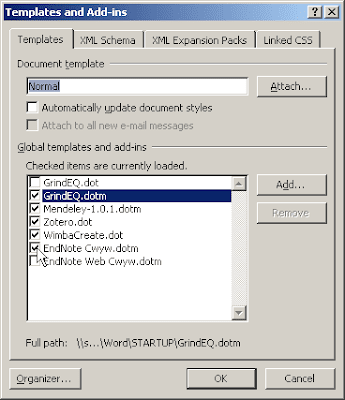
This seems to be because Word, somehow, has decided to de-activate the Endnote templates.
Unfortunately, this works in different ways on different Word installations. The instructions below are for Word 2010.
In Word 2007, it is similar but the Word Options are to be found on the big Office button.
In Word 2003, the Templates and Add-Ins dialog is to be found on the Tools menu item.
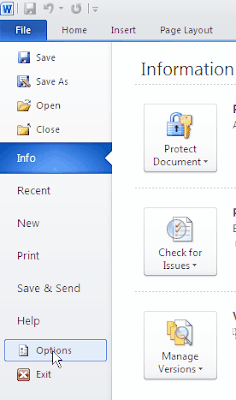
In Word 2010, go to File | Options

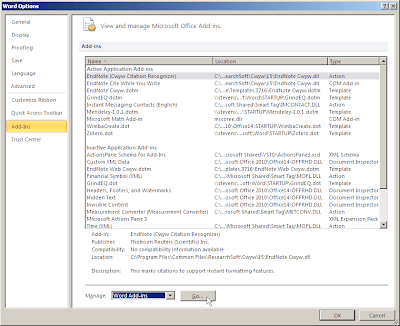
Choose the Add-Ins area.

If the Endnote templates are active (as above) they will be listed in the top part of this dialog.
If not, then go to the Manage menu at the bottom of the dialog and choose Word Add-Ins.

Click on Go, and the list of templates will be displayed.

Activate Endnote Cwyw.dotm by checking the box to the left of the name. Click on OK and the Endnote tools should appear.
Tuesday, 10 April 2012
Endnote Add-Ins
Sometimes, Endnote can simply disappear from your Word installation, or simply not appear at all on installation.
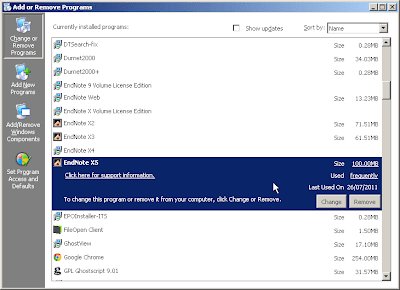
The usual advice is to reinstall Endnote. From Control Panel | Add or Remove Programs choose your Endnote program and click on Change:
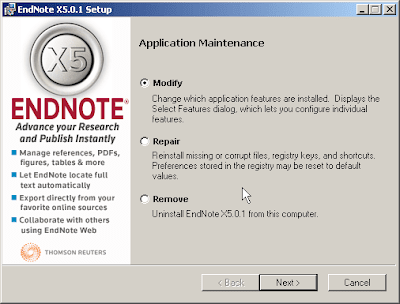
The Endnote installer will launch. Choose Modify.

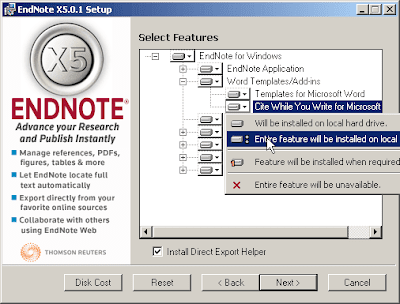
Click on Next. From the options choose ‘Endnote Program and then Cite While You Write.
Click on the drop down menu and choose ‘Entire feature will be installed on local disk.
Click on Next, and in the next screen click next again. The Word part of Endnote (called Cite While You Write) should then be installed.
Tuesday, 7 February 2012
Downloading Extra Files
As I mentioned before, by default Endnote does not load all the style, connection and import files. On a PC, you can simply modify the installation to achieve the full loading (see http://durhamendnote.blogspot.com/2011/10/full-install-of-endnote-files.html for details), but I’m not sure how to do this on a Mac.
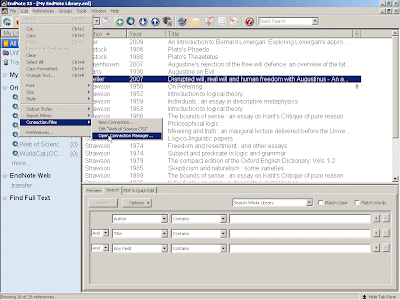
The easiest option seems to be to click on Edit and choose, for example, Connection files from the main Endnote window, then select ‘Open connection Manager’.
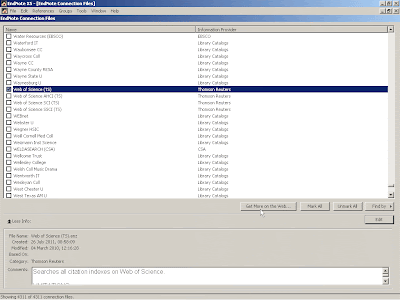
The Connection Manager dialog has a ‘Get More on the Web’ button. Click on this.

This takes you directly to the download page on the Endnote web site.
Click on the download a complete set link and put the file where the instructions (in slightly smaller type) suggest. You should then have the full set of connection files available in Endnote.