Tuesday, 27 December 2011

Endnote Web and Word

As you would expect, Endnote Web integrates with Microsoft Word. You can, in fact, switch between the two.

In Word 2010 (and, indeed, Word 2007; Word 2003 inevitably works a little differently), switching between the two is done from the Endnote tab. Click on Preferences.
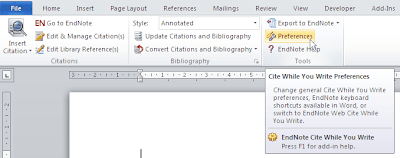


The Cite While You Writer Preferences dialog box will open. Click on the Application tab.
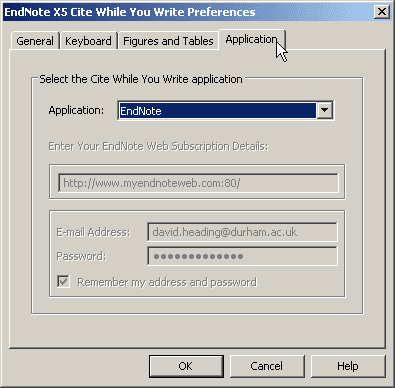
On this tab, choose Endnote Web from the drop down box and, if necessary, fill in your subscription details.

Click OK. You will need to select a style from the drop down list, and then use ‘Find Citations’ to enter a reference.
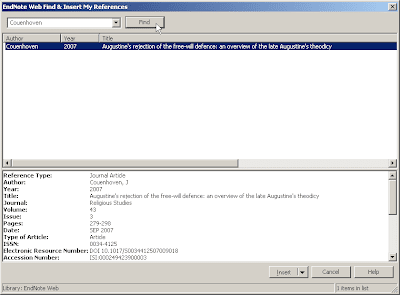
Enter the item you need to insert in the drop down box and click Find. All the possibilities will be displayed in the central text box (in the above case there is only one). Select the correct entry and click Insert.

The reference will be inserted into your document.


Tuesday, 20 December 2011

Downloading from Firstsearch Databases

If you conduct a search on a database run by Firstsearch (e.g. ERIC or ArticleFirst), you might have hit a snag.

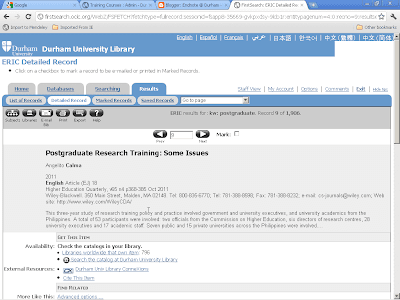
Suppose we have run a search on ERIC and this is the result:


To export the bibliographic information into Endnote, click on the ‘Export’ button.

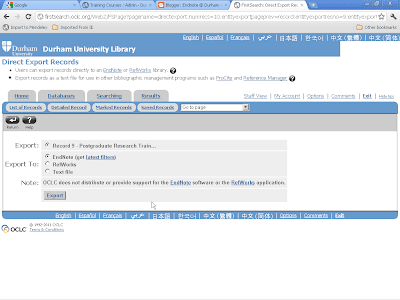
Select Endnote from the options and click Export.

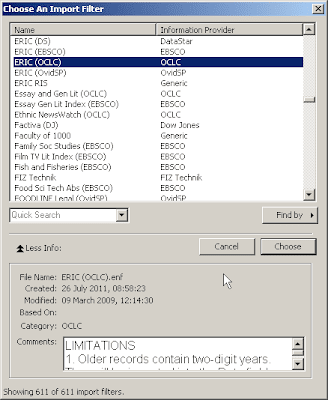
Endnote will then show the Import Filter Selection Dialog:

You need to select the appropriate filter for the database. In this case the name is ERIC with OCLC as the Information Provider.

Click on Choose and the record you require will be imported.

Tuesday, 13 December 2011

Linking Endnote Web to Endnote Desktop

One of the advantages of Endnote Web is that it links seamlessly to Endnote on a desktop PC.

This allows you to have the same items in both places, and hence your Endnote library is accessible via a web link at all times.

It is also a handy place to back your library up and also, as I’ll explain in another post, to share your library among students or co-workers.

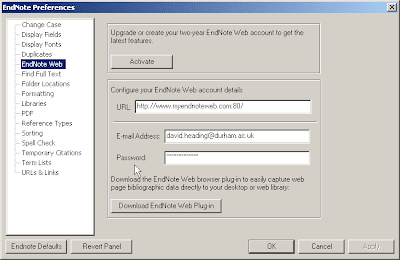
To transfer items from Endnote Web to your desktop library, you need to establish the link between the two. This is done from Endnote desktop, using Edit | Preferences | Endnote Web.

This might have been populated if you inserted your Endnote web details when installing Endnote desktop in the first place. If not, fill in your email address and password, and in necessary, the Endnote Web URL. Click on OK.

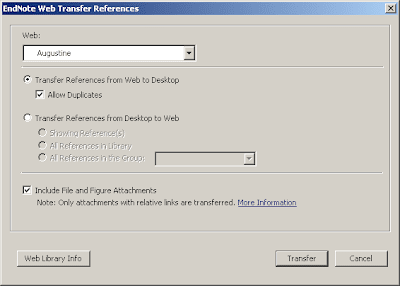
To link to Endnote Web, click on the ‘transfer…’ group in the Endnote Web group set on the desktop user interface. This will display the transfer dialog.

Note that references can be transferred to and from Endnote Web groups, while you can transfer all references from a desktop library.

When you are ready, click on Transfer.

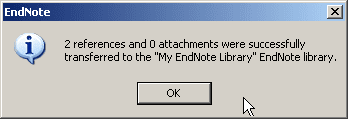
When the process is finished, you will get a confirmatory dialog, and the references will be in your All References group, and in a Endnote Web group of the same name as the one the references were transferred from.


Tuesday, 6 December 2011

Searching On Endnote Web

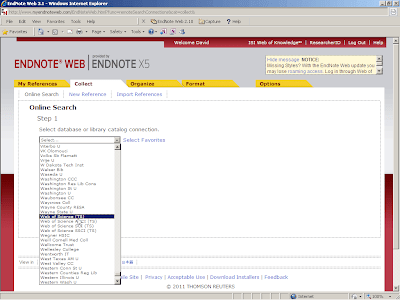
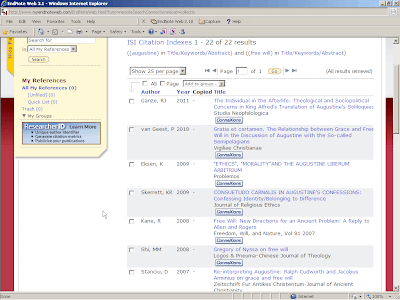
To search for items using Endnote Web, go to the Collect tab, and select the database to search. In this case we will use Web of Knowledge itself.

Click on 'Connect' when you have selected your database.

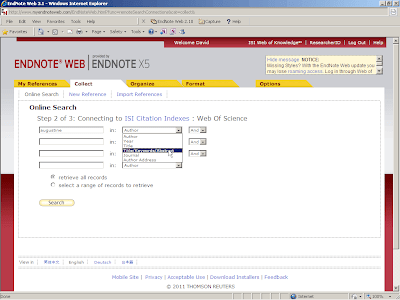
Once connected, you will arrive at the search screen. Enter your search terms in the boxes, remembering to select the search type (Author, Title or whatever) in the drop down boxes.


Click on Search, and the search will run (this may take a few moments) and the results will be displayed.

Now, you need to store the items you need as the results will be discarded when you close the page.

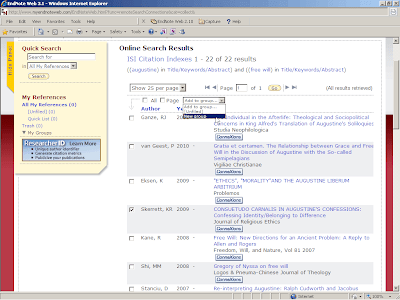
To do this, mark the items of interest using the checkbox to the left of them, and then click on New Groups on the ‘Add to group’ drop down box.


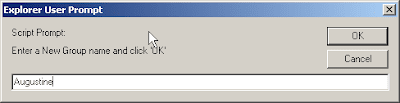
The New Group dialog will be shown. Name the group and click on OK.


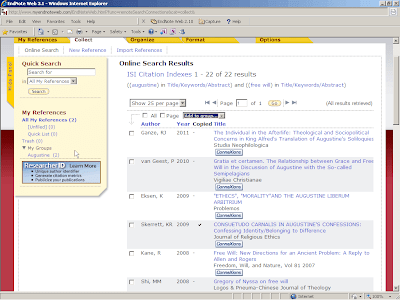
The new group will be created and your marked entries moved to it.


To view the items, click on the link to the new group under My Groups.

Tuesday, 29 November 2011

Google Scholar


I get a few calls about how to set Google Scholar up to download references directly to Endnote.

It is not difficult, but it is slightly obscure.

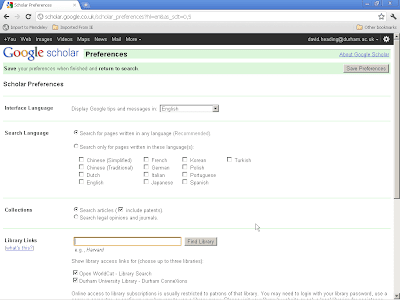
Google Scholar can be found at scholar.google.co.uk, and, at the time of writing, looks like this:


Click on ‘Scholar Preferences’, the second link down on the right by the search button.

This gets you to the preferences page.


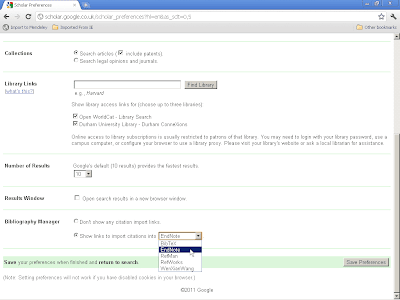
Scroll down to the foot of the page.

In the bibliography manager section at the foot of the page, select the ‘Show links to import citations into’ radio button, and choose ‘Endnote’ from the drop down menu.


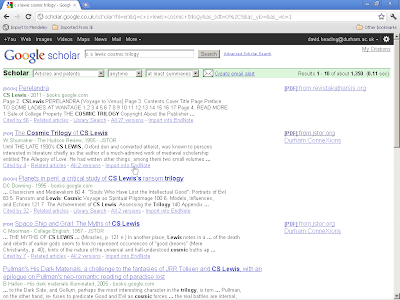
This should ensure that links under Google references called ‘Import to Endnote’ appear. Click on the links to download the references directly to Endnote.


Tuesday, 22 November 2011

Endnote Web Introduction

This is the first of what is planned to be a series of posts about Endnote Web.

The first questions to ask are ‘what is Endnote Web?’ and ‘how do I find it?’ This might be quickly followed by ‘why should I use it?’ I’ll try to answer these questions here, before moving on to how Endnote web can be used.

Endnote Web is, as the name suggests, a web based version of Endnote. It lives on the ISI Web of Knowledge site. I think that the Endnote Web is less powerful than the stand alone desktop version of Endnote, but it is rapidly increasing in capability. Best of all, at the moment, it is free to get an account and start using Endnote.

As mentioned, Endnote Web is to be found on the Web of Knowledge site, in the links at the top.


To start off, you will need to create an account on WoK. Click on ‘Sign In’ and then on the ‘Register’ link.


Having an account on WoK also allows you to save searches and retrieve them for later re-runs. You do not have to use your Durham email address for your user name, as long as you remember which address you did use. You also need to choose your password carefully, as the site has rather complex and pedantic rules for passwords.

Once registered, sign in to WoK and click on the Endnote web link. A new tab should take you to the Endnote Web interface.

Clicking on the ‘Show Getting started Guide’ towards the top right will take you to the relevant parts of the interface for doing different tasks within Endnote Web.


Endnote Web does evolve fairly quickly, but the basic user interface has been stable for a while. If things look a bit different from the pictures here, let me know and I’ll see if anything significant has changed.

Tuesday, 15 November 2011

Word Style at the End of a Document

Sometimes when an Endnote reference is inserted into a document, the reference list at the end picks up an odd underlying Word style, and you land up with something that looks like this.

This can be fixed in a fairly straightforward manner.

Firstly, unformat the Endnote references, using the tools on the Endnote tab.


This removes the immediate, visible problem.

The underlying style at the end of the document needs to be changed from, in this case Heading 1 to Normal. This is done on the Home tab of Word 2010.


Once this is done, the bibliography can be reconstructed from the Endnote tab.

The text may still not look right, but this can be changed using the usual Word tools to change the font and the text size, on the home tab.

The text can be made to look like the rest of the document.

The best way to avoid this is, of course, to check that the underlying Word style at the end of the document is the normal one.