Tuesday, 2 October 2012

Notes and Research Notes


I am sure many, if not most of you have experienced the following scenario:

You are reading a book or a paper. It is very, very useful, and you start frantically scribbling notes, underlining sentences, marking paragraphs, reading bits out to your friends, colleagues and anyone passing who you think might listen.

You get to the end of the document, and you have several pages of notes. The question then arises: what do you do with them?

Classically, of course, you would attach them to the document with a staple or paper clip, and place the original document and your notes reverently in a filing cabinet draw, so you could find it all again.

These days, of course, we store the document in Endnote as an attachment, and so putting notes in alongside seems to be impossible.

There are, however, a couple of things you can do to keep your notes alongside the original, in a form which is easy to retrieve.

Firstly, you can type your notes up in a word processor, and attach that file to the Endnote record. You can, in fact, attach up to (I believe) 44 different files to a record, which is a lot of notes. So your file attachments to a given record in Endnote can include the work itself and several sets of notes that you might have taken at different times.

Alternatively, if your notes are not too long, you can use either the ‘Notes’ or the ‘Research Notes’ field in the record. Both can store up to 64,000 characters, which is reckoned to be about 16 pages of text. While this may not be as flexible as a Word document, it does have the advantage of being immediately visible in the record when you open it.

If you have downloaded the record from a library or database, it is possible that the Notes field will already be populated by some information, such as the size of the book and the number of pages. In general, you can remove this without fear of suddenly requiring that information (who needs to know how big the book is, after all?).


Tuesday, 28 August 2012

Endnote X6 Has Arrived


Endnote X6 has arrived on my desktop. I confess, I was not expecting very much additional functionality from it (it was flagged by Adept, at least, as more of a tidy up than a redesign).

What it does have, however, is a redesigned user interface, presumably to make it more Windows 7 in style.


As you can see, the preview pane that used to be at the bottom of the window has gone, replaced by a tabbed pane on the right which shows the selected reference, its preview in a bibliography and the PDF attachment (if any).

The search screen is now hidden and can be reached from the show search button on the icons menu.

The rest of the user interface seems to be fairly familiar, but there are two new features which might be useful.

The first is a button to mark items as read or unread. Imports into the library are automatically marked as unread so consistent use of this feature might help you to stop building up mountains of unread texts in your library.

The second is a rating system, based around the inevitable stars. I would guess that this might be useful if you are sharing a library with other people, or just for your own reflection on whether the paper was good or bad. However, I think that it might be less useful than the read/unread marker.

Tuesday, 21 August 2012

12xxxx Connection Errors


A recent puzzle was a sudden failure of Endnote to connect to Web of Science directly.

The software used to connect quite happily, but had suddenly stopped doing so, giving an error in the 12000 range, along with a connection error message.

The usual cause of this is a change in your machines internet security options; a quick check for this is to turn off your machine’s firewall software and see if Endnote will then connect.


Tuesday, 10 July 2012

Multiple Authors in the Author Field


One thing I have noticed that catches people out is entering multiple authors into the author field.

If you create a new reference (References | New Reference on the menu), you can enter the authors into the Author field. It is natural to do this in a continuous fashion:


Unfortunately, this does not render properly in the output, as can be seen from the preview pane:


The solution to this is to split the separate authors onto separate lines in the author field.


This now outputs correctly:

  
The same is also true of the Editor field.

Tuesday, 19 June 2012

Westlaw and Endnote


For a long time it has not been possible, much to the irritation of people engaged in law research, to download from the Westlaw database to Endnote.

Recently, this has changed, and journal articles (although not cases) can now have their references exported to Endnote.

First, you need to run your search on Westlaw:


The results are shown. Click on the check boxes on the left to select the items you want to download.


The download functionality is cunningly hidden in the top right hand corner next to the envelope. Click on the down arrow and select Export to Endnote.


This takes you to the Export page


Click on Submit. A .ris file will be downloaded to your local disk. Open this and it should load into your Endnote library.


Tuesday, 12 June 2012

Hanging Indents


Occasionally, I get asked how to remove the hanging indents from a bibliography.The hanging indents, as I’m sure you know, are the bits where the first line of a reference hangs out beyond the second on the left of the page – this is much harder to describe than to show:

This can be referenced (Burn, 1969), and so can this (Aristotle, 1984).


Some referencing styles want this, and some do not. It is not something you can control from the style.

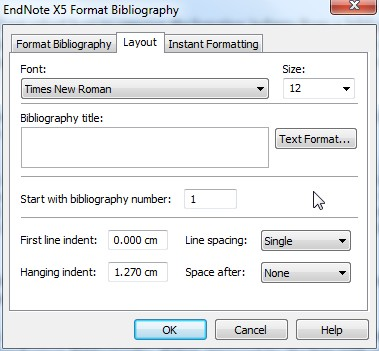
To change this, you will need to middle tab from the familiar (at least from the last few weeks posts) Format Bibliography dialog, accessed by the box with an arrow in it in the Bibliography group of the Endnote tab.


The entry in the bottom left ‘Hanging indent:’ controls the size of the indent. Setting this value to zero will remove the indent entirely.

As you can see from this dialog, there are a number of other things you can control – the font and size of the bibliography, a title for it, the line spacing and so on. It is worth having a bit of a play with these settings to see what you can change, and select some which you like.

Tuesday, 5 June 2012

Instant Formatting

Mostly, when you insert a reference into a Word document from Endnote, the citation is quickly updated to be the fully formatted citation and the reference added to the reference list at the end of a document.


Sometimes, this is not the best or most convenient method of having your references formatted. For example, I mentioned last time the problem with using brackets for notes of the same type as Endnote uses for its in text citation delimiters.

If you have just one example of this, every time you insert a citation, you will get Endnote asking you which reference your bracketed comment refers to.

If this gets annoying (and it almost certainly will), you can turn off Endnote’s instant formatting feature.

To do this, click on the little arrowed box at the bottom right of the Bibliography group on the Endnote tab.


This brings up the format bibliography dialog box.


If you click on the Instant Formatting tab, you can turn the feature on and off.


Click on Turn Off and then OK.

Your citations will now remain unformatted in your document until you instruct the program to format them yourself. To do that, click on the Update Citations and Bibliography in the Bibliography group on the Endnote tab (top picture of this post).